The Mintt - Free Gift app lets you automatically offer a free product when a customer reaches a set cart value. The app displays a progressive free gift bar on your storefront to promote the offer and encourage customers to increase their order value.
This guide explains how to create a free gift offer.
Step 1 - Open the Mintt - Free Gift app
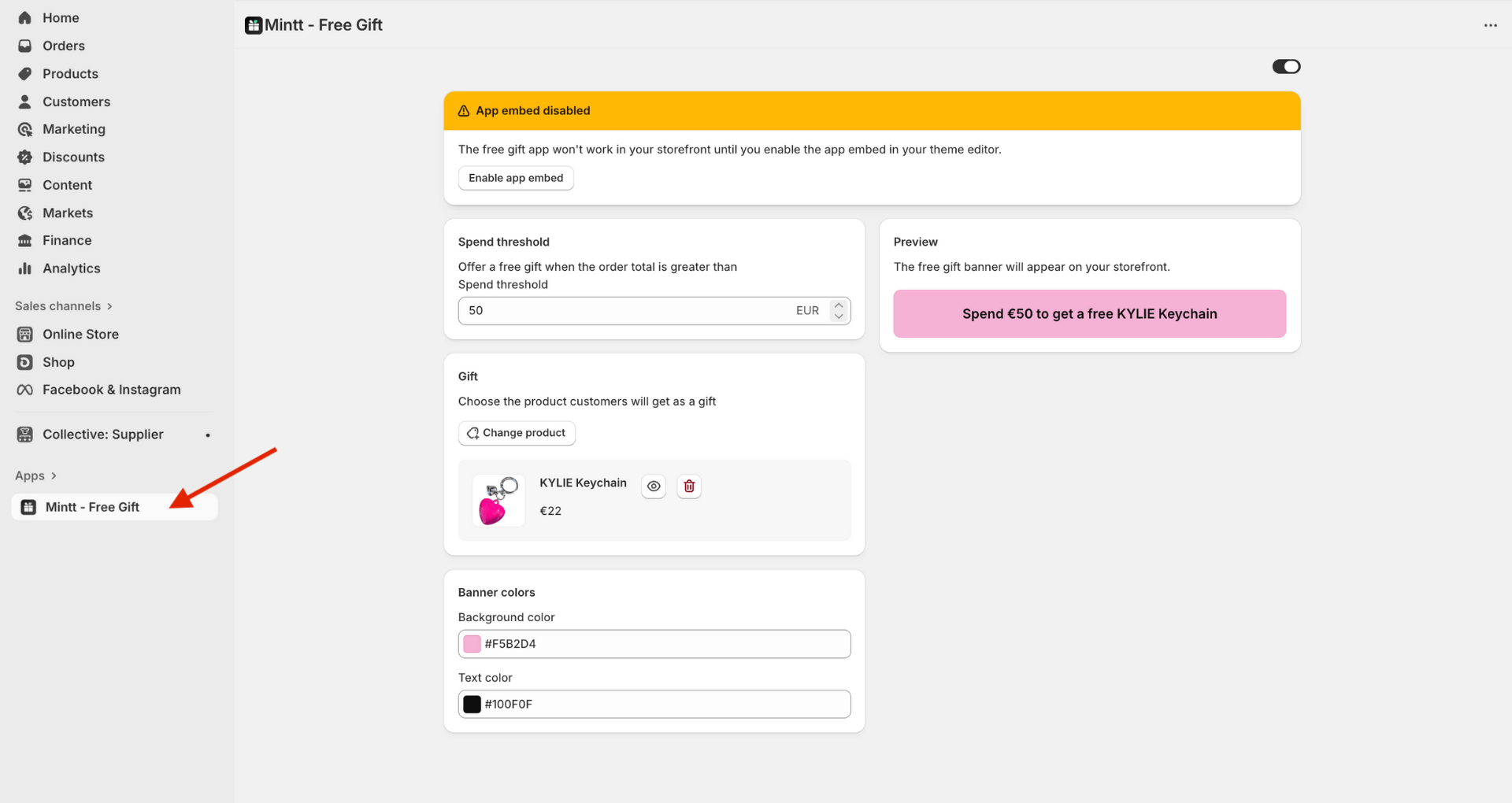
- In your Shopify admin, go to Apps > Mintt - Free Gift
Step 2 - Set a spend threshold
- In Spend threshold, enter the minimum order total required to unlock the gift. This means customers must spend more than this amount to receive the free gift.

Step 3 - Choose the gift product
- Under Gift, click Add product and select the product you want to offer for free.
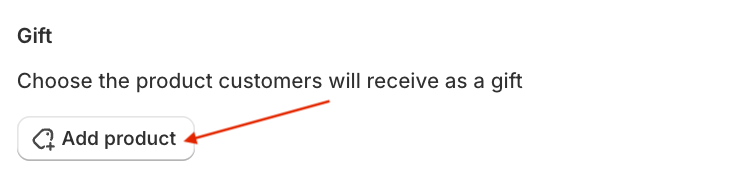
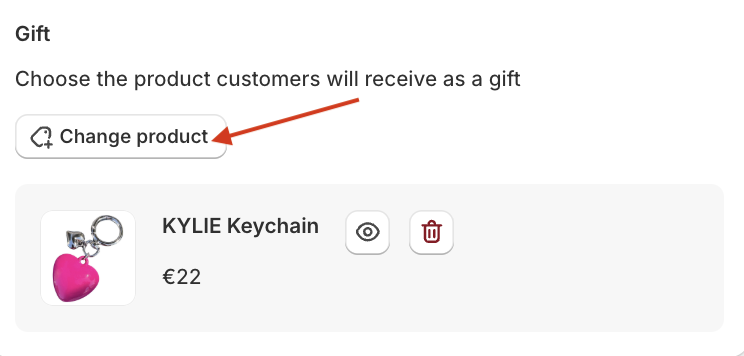
The selected product will appear in the free gift banner and will be automatically added to qualifying carts.
- To select a different product, click Change product.
Step 4 - Customize the free gift banner
In the Color section, choose:
Background color for the banner
Text color for the message
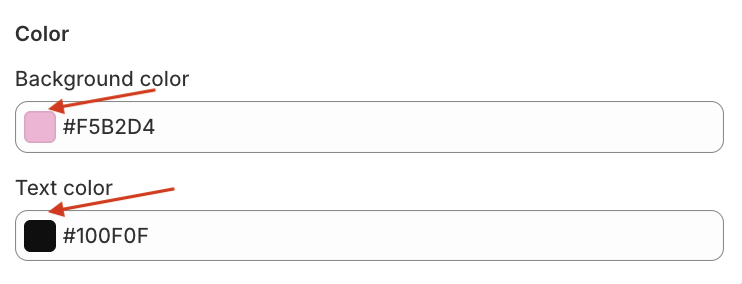
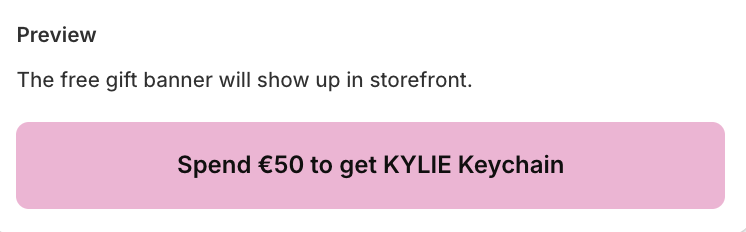
The Preview section shows how the banner will look to customers.
Step 5 - Save changes
- Click Save in the top save bar.

Step 6 - Add app to theme
- Click Enable app embed in the top app embed bar to show the free gift offer in your storefront.

Frequently asked questions
Can I turn the offer off?
Yes. Simply switch off the Free Gift toggle on the top. The banner will disappear and no gifts will be added.
How does the free gift work for customers?
When a customer’s cart total is higher than your set threshold, the selected gift product is automatically added to their cart for free.
What happens if the customer removes items and goes below the threshold?
If the order total drops below the threshold, the free gift offer will be removed. Any gift products already in the cart will remain, but at their regular price.
Will the gift show automatically in the customer's cart?
Yes. The gift will appear automatically in the cart and checkout as a free item.